Digitize the print properly
A flatbed scanner gives the best result. Scan at 600 dpi for standard prints and 1200 dpi for small ones, such as wallet photos and contact prints, so there are enough pixels to work with. Save as PNG or as a maximum-quality JPG.
No scanner? Photograph the print with your phone in daylight near a window, not under a lamp. Lay it flat, hold the phone parallel to it to avoid a keystone shape, and turn off the flash: its glare leaves a white patch that no restoration can recover.
Take the print out of its frame or album sleeve first, since glass and plastic add reflections and a color cast. If a photo is stuck to the glass, scan it through the glass rather than risk tearing it.
What restoration fixes, and what it can’t
Restoration handles the usual damage of old prints: dust and scratches, creases and small tears, stains, faded or shifted colors, and the general softness of old lenses and film. It all happens in one pass.
Large missing areas are another matter. When half a face is torn away, any tool can only invent a plausible face, not recover the real one. The repair brush lets you leave such areas as they are or fill them gently; the choice is yours.
Restoration cannot know what colors a black-and-white photo really had. Colorization is a separate, optional step. Keep the black-and-white version too: it is the faithful record.
Keep faces true to the original
Face enhancement sharpens eyes, skin and hair, and it is often what makes a restoration striking. It is also where things can go wrong: a strong setting can smooth wrinkles away or subtly change the shape of a smile. Start with the default strength.
Compare with the before-and-after slider at 100% zoom, looking at the eyes and the mouth. If someone looks younger, or simply different, lower the strength. Relatives who knew the person are the best judges, so show them both versions.
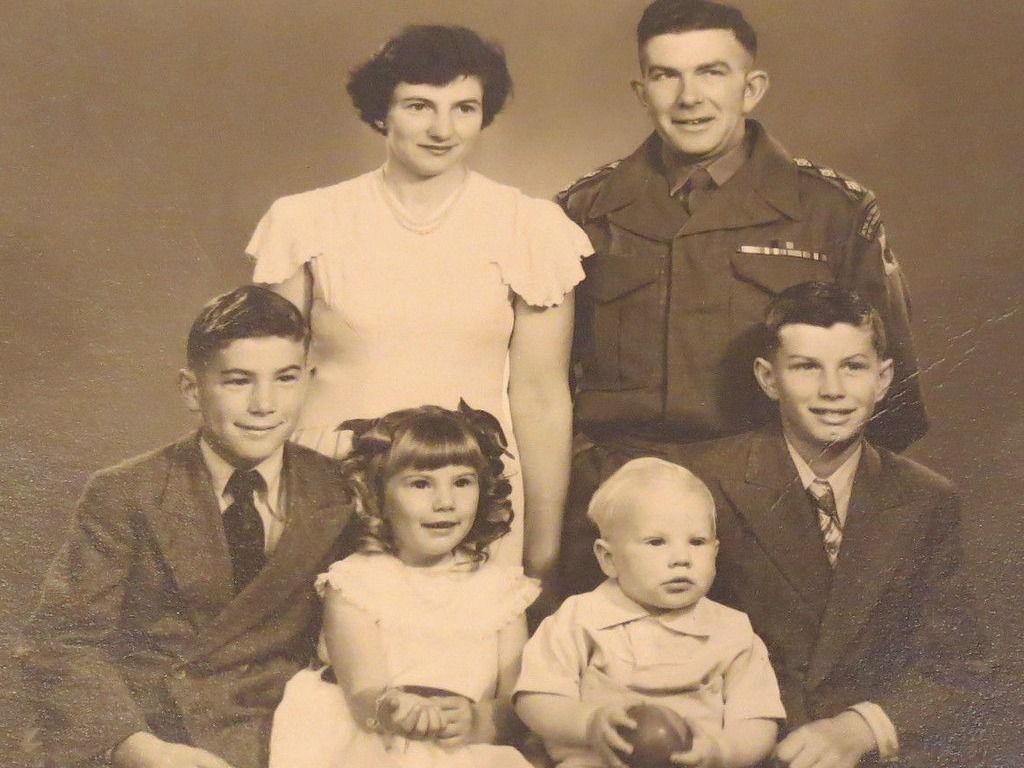
In group photos, check every face. Small faces at the back have the least detail to work from, so they are the ones that change most.
Bring back faded colors
Color prints from the 1960s to the 1990s often fade unevenly. The cyan dye tends to go first, leaving a red or orange cast over the whole picture. Color correction rebalances the image toward neutral grays and natural skin tones.
Keep some of the original character. A photo from 1975 should not look as if it was taken on a phone yesterday: a slightly warm tone and soft contrast are part of its age. The strength slider lets you stop halfway.
If only part of the print was damaged by light or water, correct the whole photo first, then touch up the damaged patch with the repair brush.
Frequently asked questions
Can I restore a black-and-white photo?
Yes. Scratches, dust, creases and fading are repaired the same way. Colorization is optional and kept separate, so you can export both versions.
Will the restored face still look like the person?
At the default strength, features stay close to the original. Higher settings add detail that may not match; compare with the slider and lower the strength if a face changes.
Is it better to scan or to photograph the print?
A flatbed scan at 600 dpi is sharper and more even. A phone photo in daylight works well too, as long as the print lies flat and there is no glare.